Ergonomic Office Desk Setup: The Exact Measurement Guide
You will be able to arrange your monitor, lighting, and power supply using exact ergonomic measurements to prevent daily fatigue. Grab your tape measure, because this complete desk setup measurement guide delivers the concrete dimensions needed to dial in your workspace.
Anchoring the Workspace with a Felt Acoustic Desk Pad
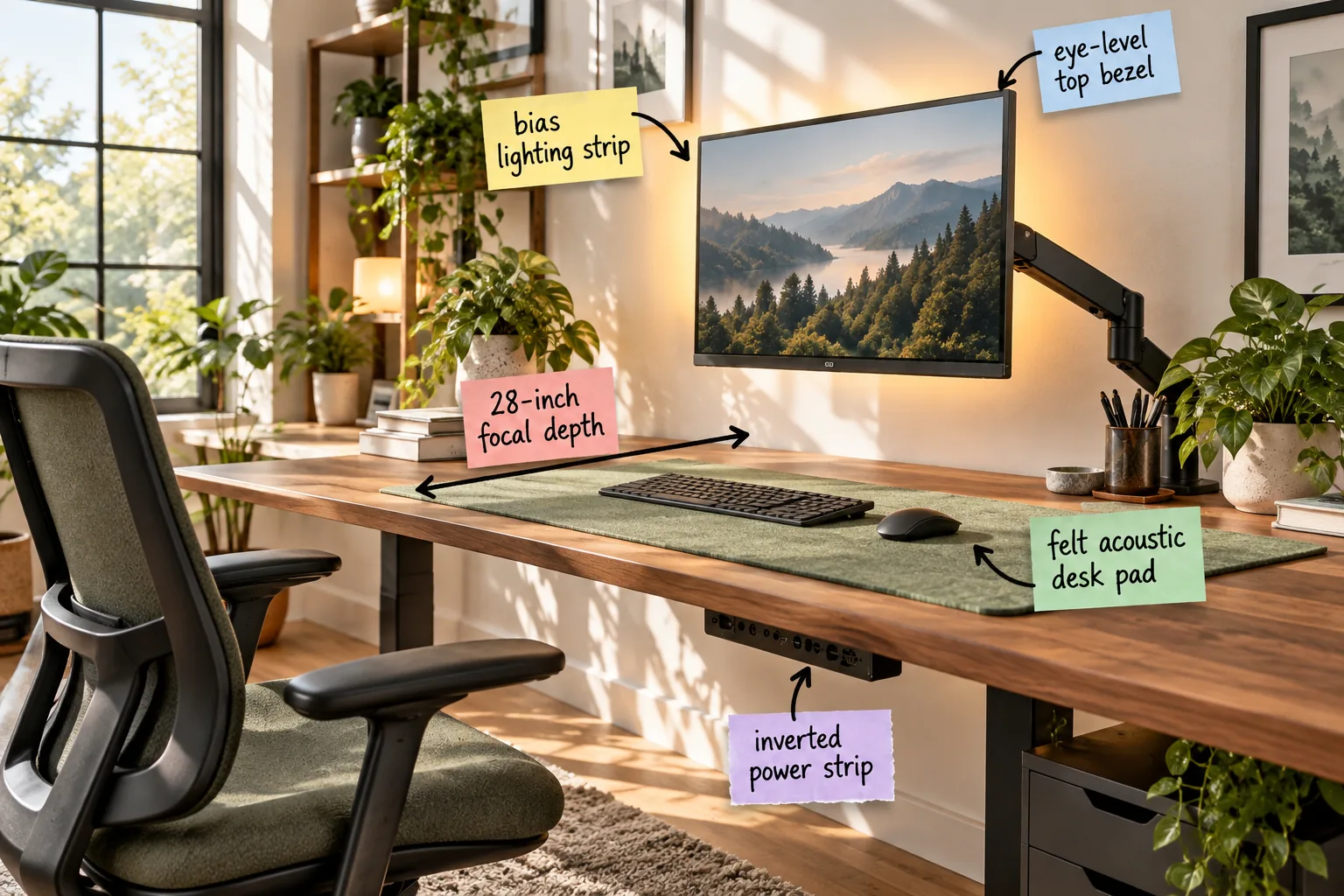
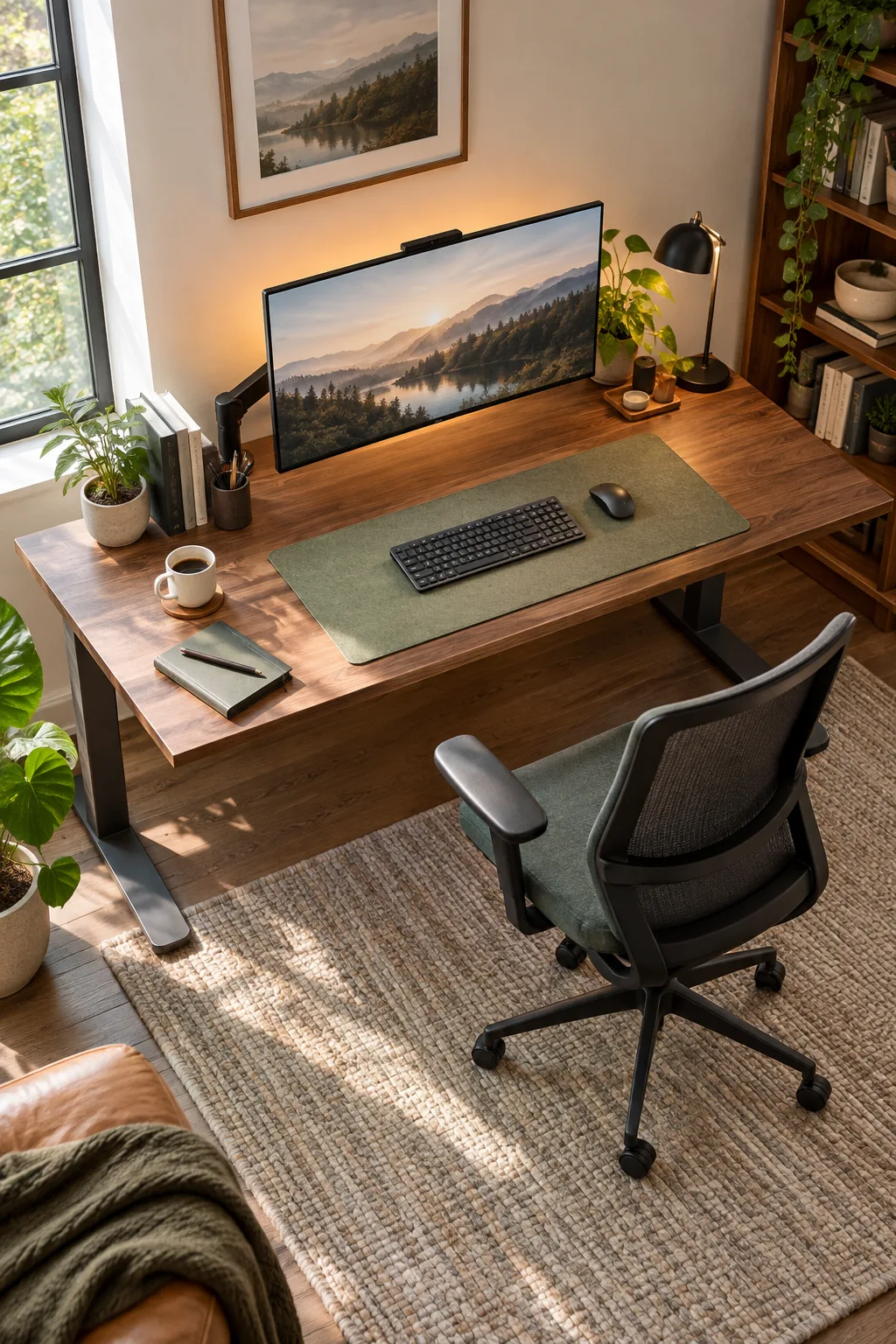
Start by defining your primary work zone with a sage green felt acoustic desk pad. In a recent downtown Denver loft project, adding this thick material instantly dampened the harsh keyboard clatter echoing off the glass walls.
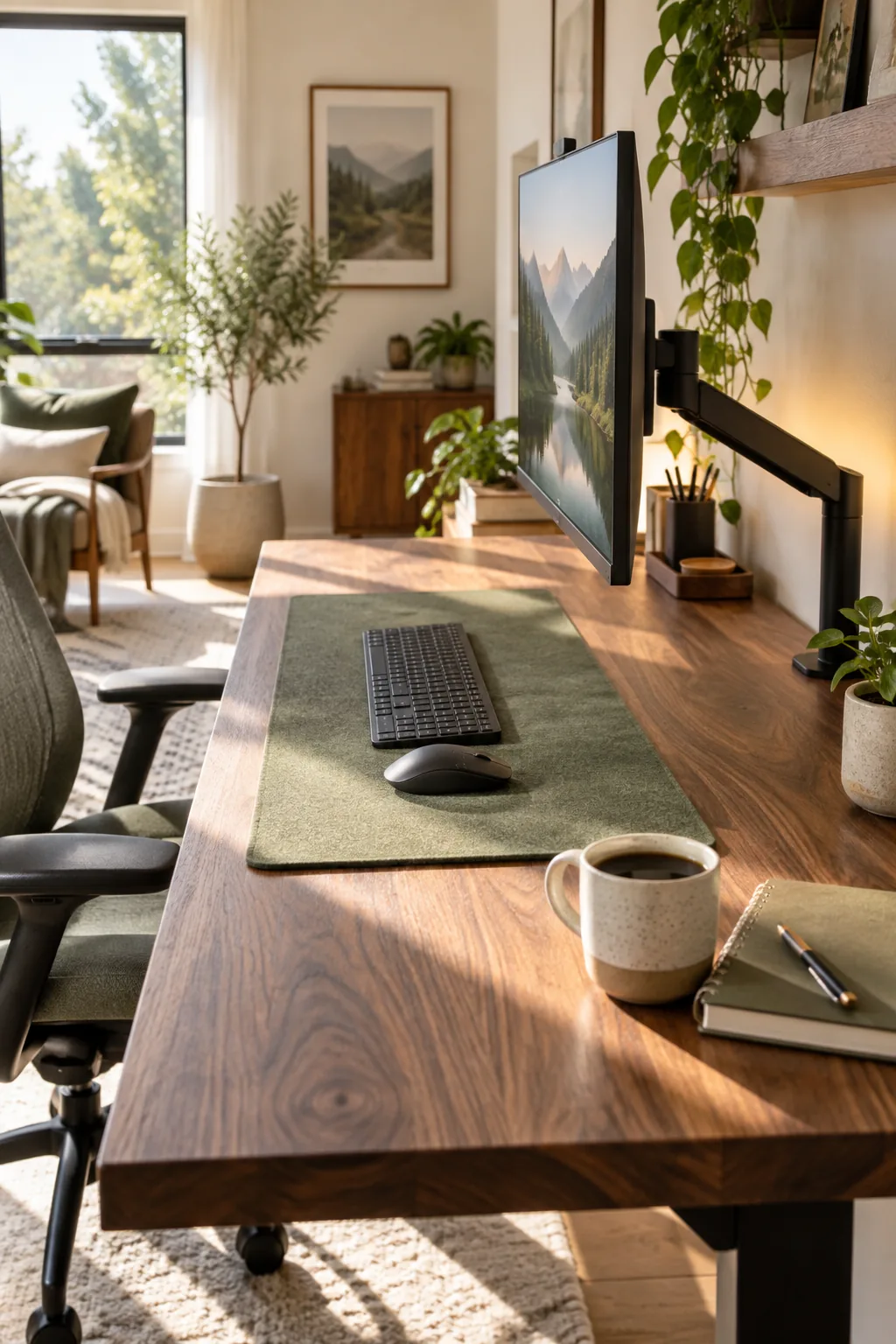
Choose a pad that is at least 30 inches wide to comfortably accommodate both a full-sized keyboard and a mouse. This generous width ensures your wrists always rest on a soft, warm surface rather than a cold desktop.
Positioning the Mouse for Shoulder Health
Keep your mouse directly adjacent to the keyboard to prevent dangerous outward shoulder rotation. Placing the mouse within a strict 12-inch radius of your body center keeps your elbow resting comfortably against your ribs.
Adjusting the Primary Typing Angle
Lower the back legs of your keyboard so the keys sit completely flat or tilt slightly away from you. A negative or neutral tilt prevents the wrists from bending sharply upward, reducing the risk of repetitive strain injuries.
Setting the 28-Inch Focal Depth
Establish a strict 28-inch focal depth from the front edge of the desk to the monitor screen. In my own home office, locking in this specific distance completely eliminated my afternoon tension headaches.
- Measure horizontally from your seated belly position directly to the screen center.
- Use a sliding keyboard tray to pull your body back if the desk is too shallow.
- Mount a heavy-duty monitor arm to push the screen further back against the wall.
Even with the right measurements in hand, small placement errors can cause major discomfort over a long workday.
Evaluating Desk Surface Depths
Standard commercial desks often measure only 24 inches deep, which makes achieving proper focal depth nearly impossible with a factory stand. Upgrading to a 30-inch deep worksurface provides the necessary physical runway for both your acoustic pad and a monitor base.
| Desk Depth | Monitor Support | Keyboard Space | Best Use Case |
|---|---|---|---|
| 24 inches | Requires monitor arm | Minimal clearance | Compact home offices |
| 30 inches | Fits standard stands | Generous felt pad space | Ideal ergonomic setup |
| 36 inches | Supports dual monitors | Room for drafting | Executive or creative suites |
Always measure your available room footprint before committing to a deeper desk. A wider surface is useless if it blocks your office door or prevents your chair from rolling back safely.
Aligning the Eye-Level Top Bezel
Before adjusting height, you must finalize establishing the 28-inch focal depth to prevent eye strain and forward leaning. The horizontal distance and vertical height work together to keep your posture entirely neutral.
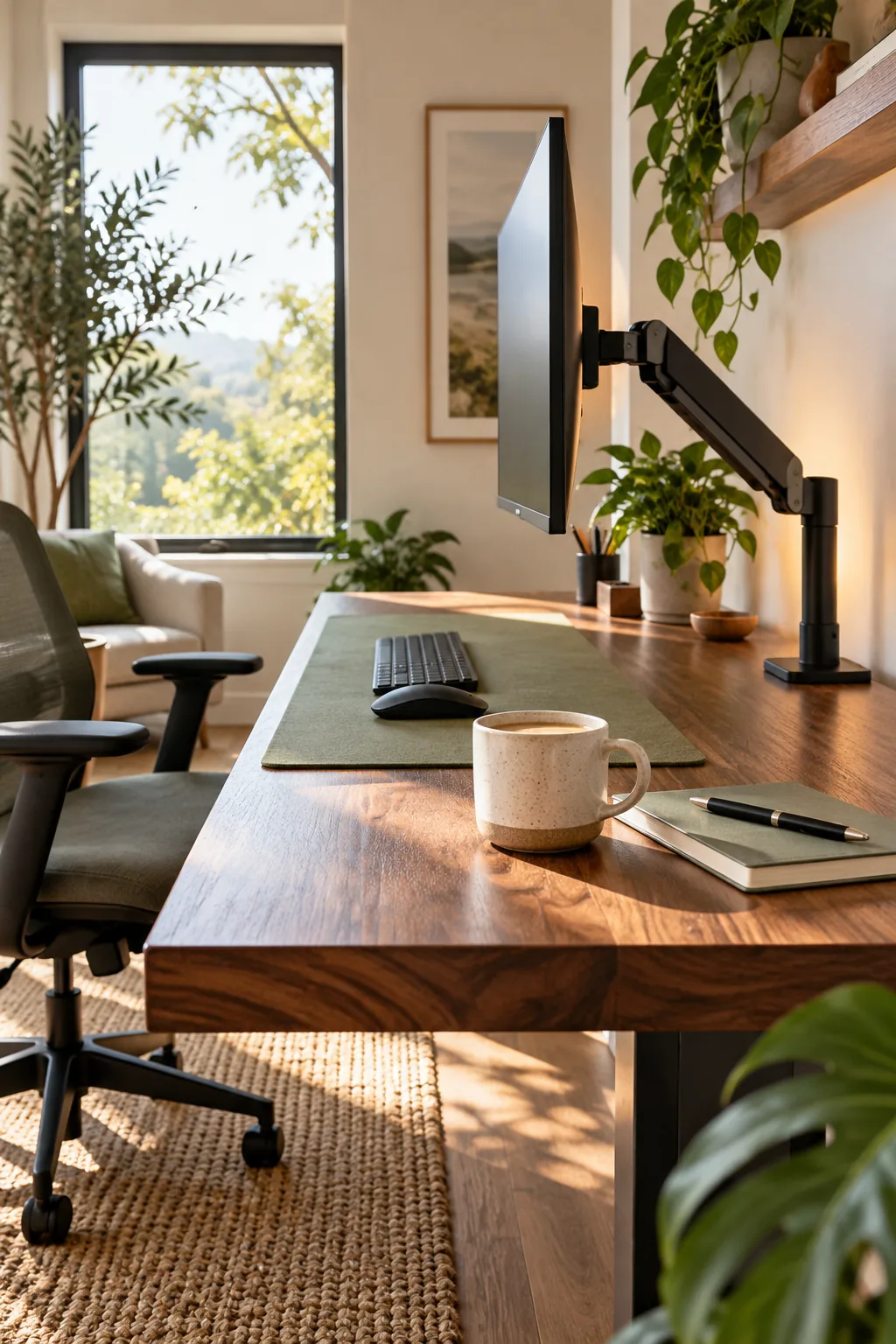
Next, position the monitor so the eye-level top bezel aligns exactly with your horizontal gaze when seated. Always adjust your ergonomic chair to the correct height first so your eyes naturally fall on the upper third of the screen.
Choosing an Articulating Monitor Arm
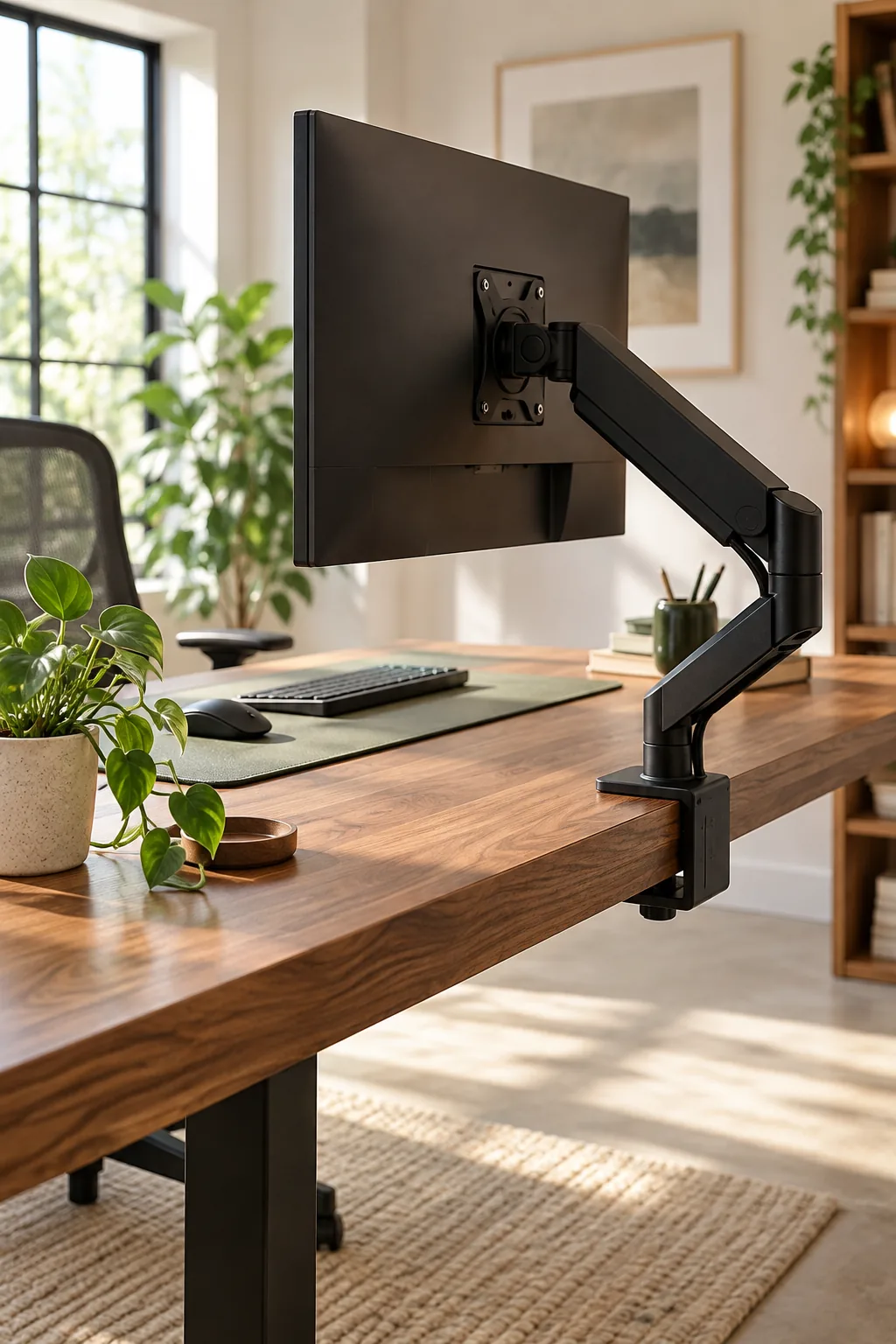
Mounting the display on a heavy-duty articulating monitor arm frees up valuable desktop real estate that a bulky factory stand would consume. Ensure the arm’s clamp is rated to support your specific desk thickness up to 2.5 inches.
- Clamp the heavy metal base loosely to the rear desk edge and verify it clears the wall.
- Attach the square VESA plate to the back of your monitor before lifting the heavy screen.
- Slide the monitor onto the arm and tighten the tension bolt until the screen floats.
Tensioning the Gas Spring Arm
Once mounted, use an Allen wrench to adjust the internal gas spring tension to match your monitor’s exact weight. Turn the bolt toward the plus sign until the screen hovers effortlessly in place without slowly sinking or springing upward.
Selecting the Right VESA Mount
Check the back of your display to ensure it supports standard mounting hole patterns before buying an arm. Most modern office monitors utilize a 100x100mm VESA pattern, which requires four simple screws to secure the heavy screen safely.
Positioning Dual Monitors
If your workflow requires two screens, angle them slightly inward in a shallow V-shape rather than placing them flat against the wall. This subtle 15-degree curve keeps both screens equidistant from your eyes, maintaining that crucial focal depth.
Centering the Primary Display
When using an ultrawide or dual-screen setup, never split the bezels directly down the center of your vision. Always place your primary work screen dead center and relegate the secondary monitor to the side to avoid constant neck twisting.
Reducing Strain with a Bias Lighting Strip
Attach a warm LED bias lighting strip directly behind the monitor to cast a soft, diffused glow against the back wall. I always use these in my studio to soften the harsh contrast of bright screens during dark Denver winters.
Keep the color temperature around 3000K for a soothing, non-clinical atmosphere. This ambient light significantly lowers eye fatigue by easing the visual transition between your glowing display and the surrounding dark room.
Balancing Room Illumination
Never rely on bias lighting as the sole illumination source in an otherwise pitch-black office. Balance the monitor’s glow by turning on a low-wattage floor lamp in the opposite corner to eliminate deep, distracting shadows.
Mounting an Inverted Power Strip
Install an inverted power strip completely out of sight under the rear edge of the desk. Use heavy-duty double-sided mounting tape or short wood screws to secure the strip firmly to the underside of the desktop.
Keeping heavy power bricks elevated prevents a tangled, dusty mess on the floor. This hidden placement also protects your essential plugs from accidental kick-outs when you stretch your legs during a long meeting.
Securing Heavy Power Bricks
Laptop chargers and monitor power bricks are often too heavy to hang freely from the inverted strip without pulling the plugs loose. Strap these bulky adapters directly to the desk frame using wide velcro cable ties to bear the actual weight.
Grounding the Power Supply
Protect your expensive hardware by ensuring your hidden power strip includes an integrated surge protector with a high joule rating. Look for a unit rated for at least 2000 joules to safely absorb unexpected electrical spikes.
Managing Hanging Cords and Cables
Route the remaining monitor, peripheral, and lighting cables tightly along the back edge of the desk and down the legs. Keeping wires bundled prevents them from snagging on your knees or chair armrests when shifting positions.
Routing Cables Through Grommets
If your desk features pre-drilled surface grommets, feed your keyboard and mouse wires straight down rather than draping them over the back edge. This direct routing creates a cleaner visual line and prevents lightweight peripherals from slowly sliding backward.
Evaluating Chair Armrest Clearance
Before finalizing the cable paths under the desk, roll your chair forward to check the armrest clearance. Ensure the armrests sit at least one inch below the lowest hanging wire or tray to avoid catastrophic snags when standing up.
Selecting the Right Task Chair
A perfect desk setup falls apart if your chair lacks independent seat pan and backrest adjustments. Look for a model with a sliding seat depth that allows two fingers of clearance between the cushion edge and your calves.
Adding a Supportive Footrest
If raising your chair to reach the proper desk typing height lifts your feet off the floor, introduce an angled footrest. Planting your feet firmly on a 15-degree tilted surface relieves lower back pressure and promotes healthy blood circulation.
The Complete Desk Setup Measurement Guide
Bringing all these specifications together creates a workspace that actively supports your posture rather than fighting it. Use this consolidated desk setup measurement guide to verify all dimensions before finalizing the layout or drilling permanent holes.
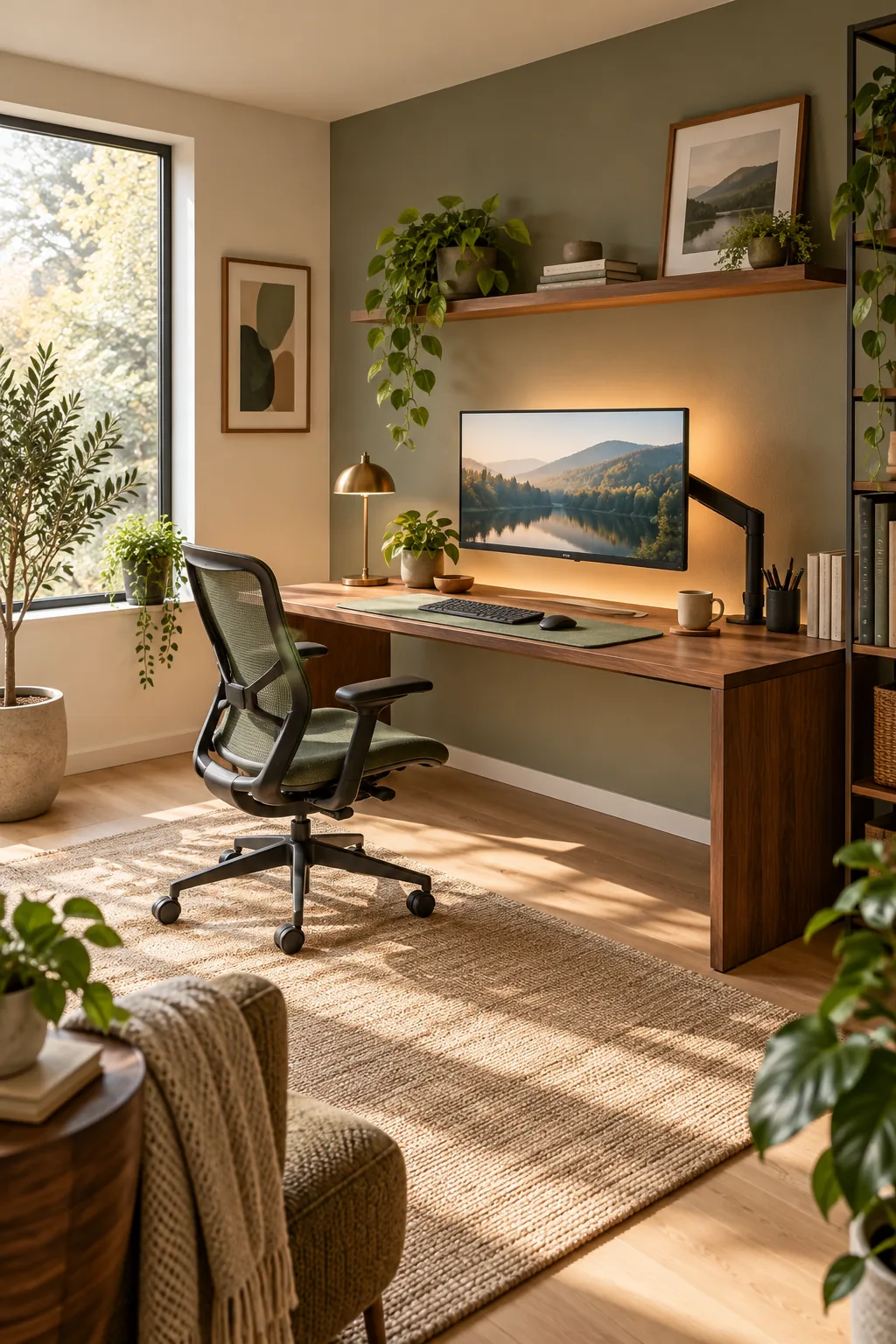
Run through these final benchmark measurements to ensure your new workspace is ergonomically sound.
4 Ways to Style an Ergonomic Workspace
Find the perfect aesthetic for your home office with these distinct desk setups.
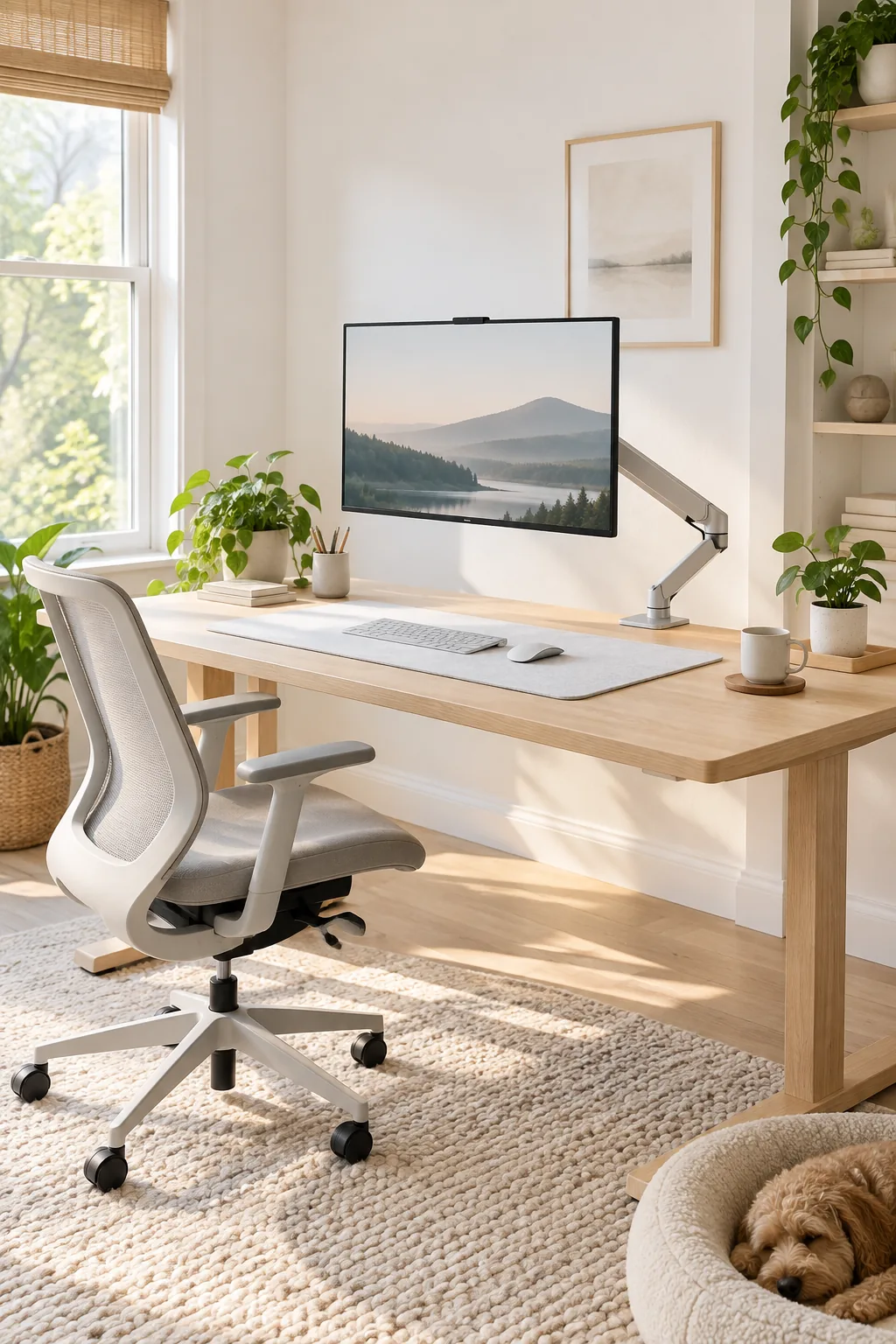
Minimalist Scandinavian Light Ash: This Scandinavian approach pairs light ash wood with a crisp white pad and silver hardware for a bright, distraction-free workspace.
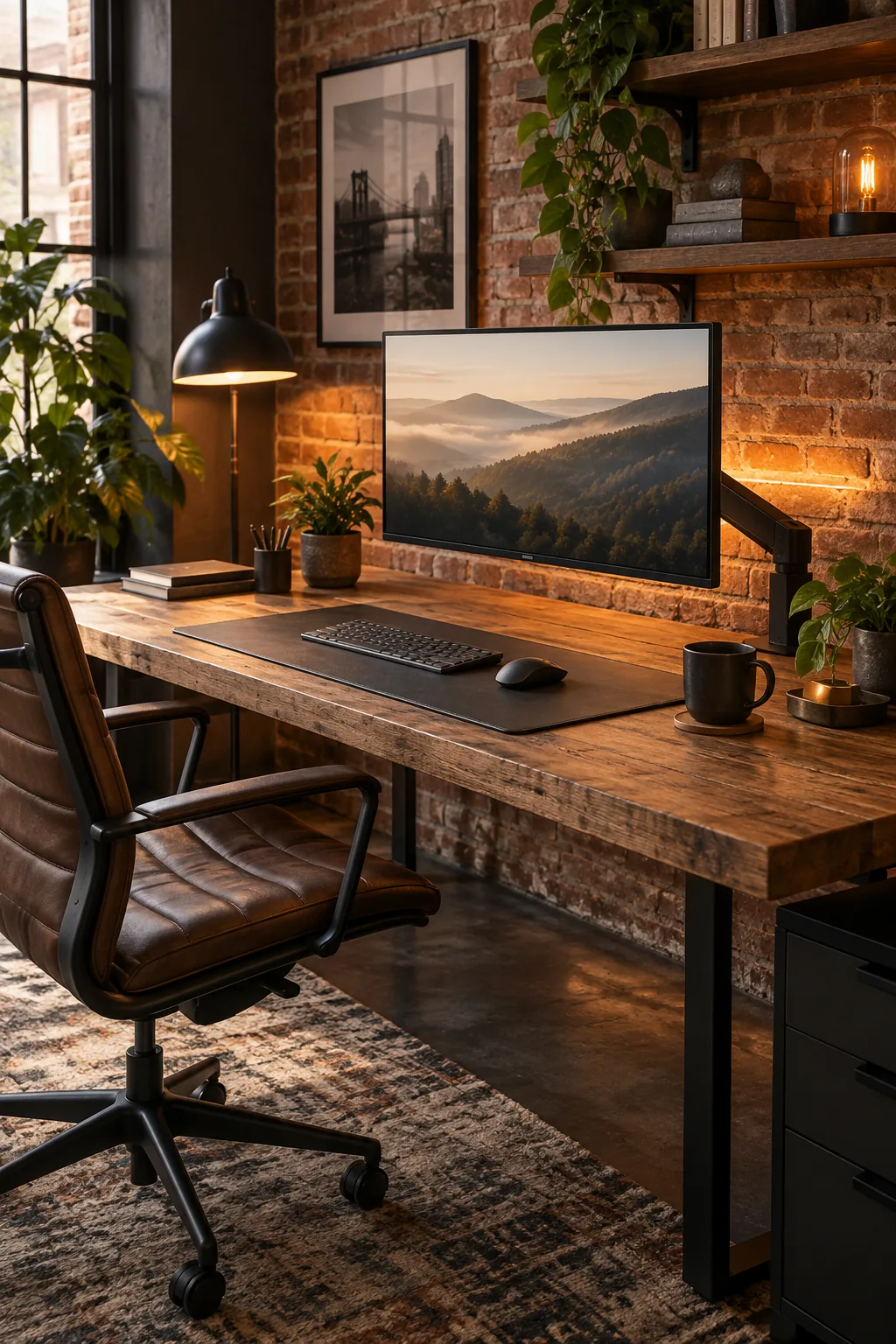
Moody Industrial Reclaimed Oak: Reclaimed oak and a charcoal leather pad give this industrial setup a moody, grounded aesthetic that pairs perfectly with warm amber backlighting.
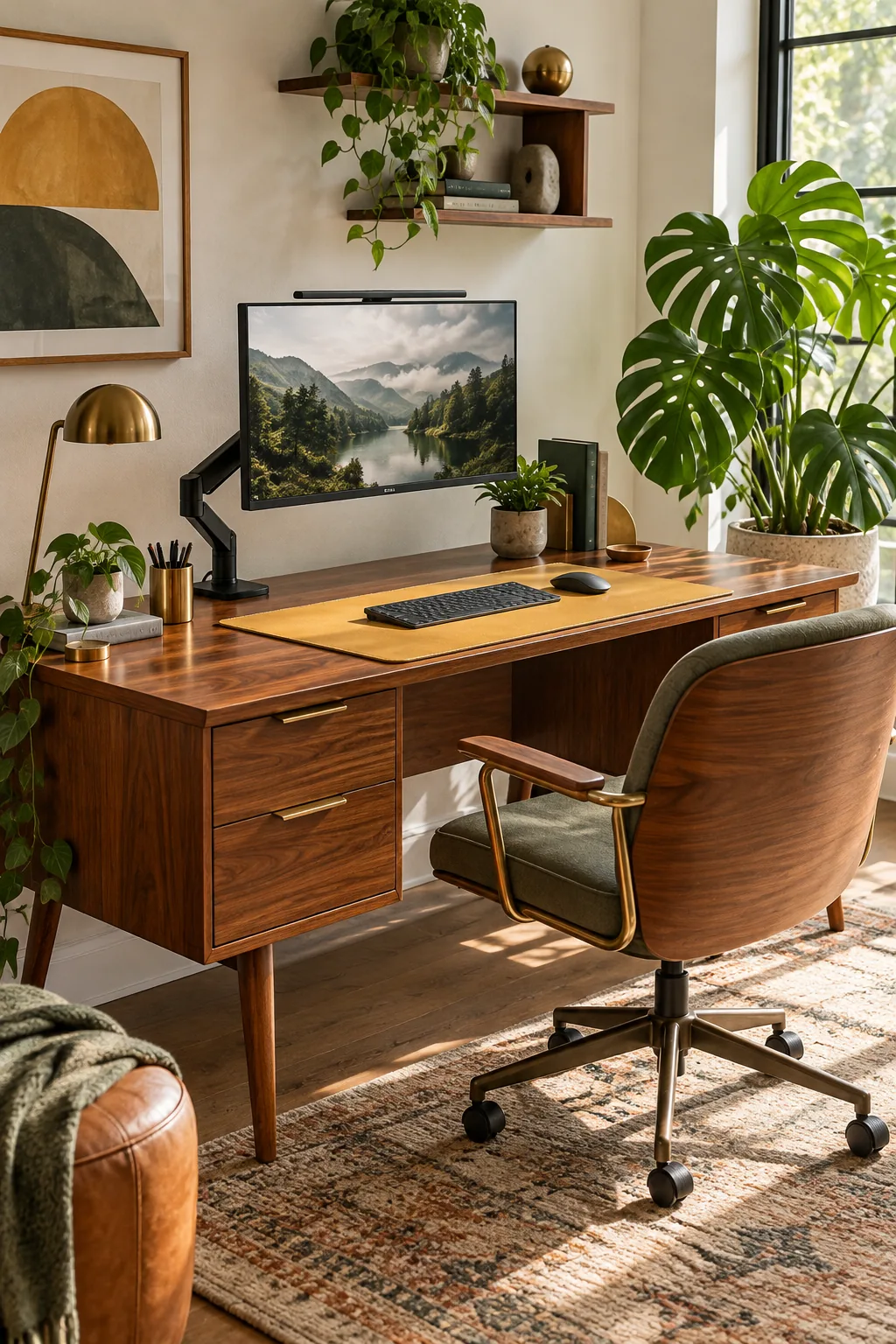
Mid-Century Modern Teak Wood: A mustard yellow pad adds a vibrant pop of retro color to this mid-century modern teak desk, complemented by subtle brass accents.
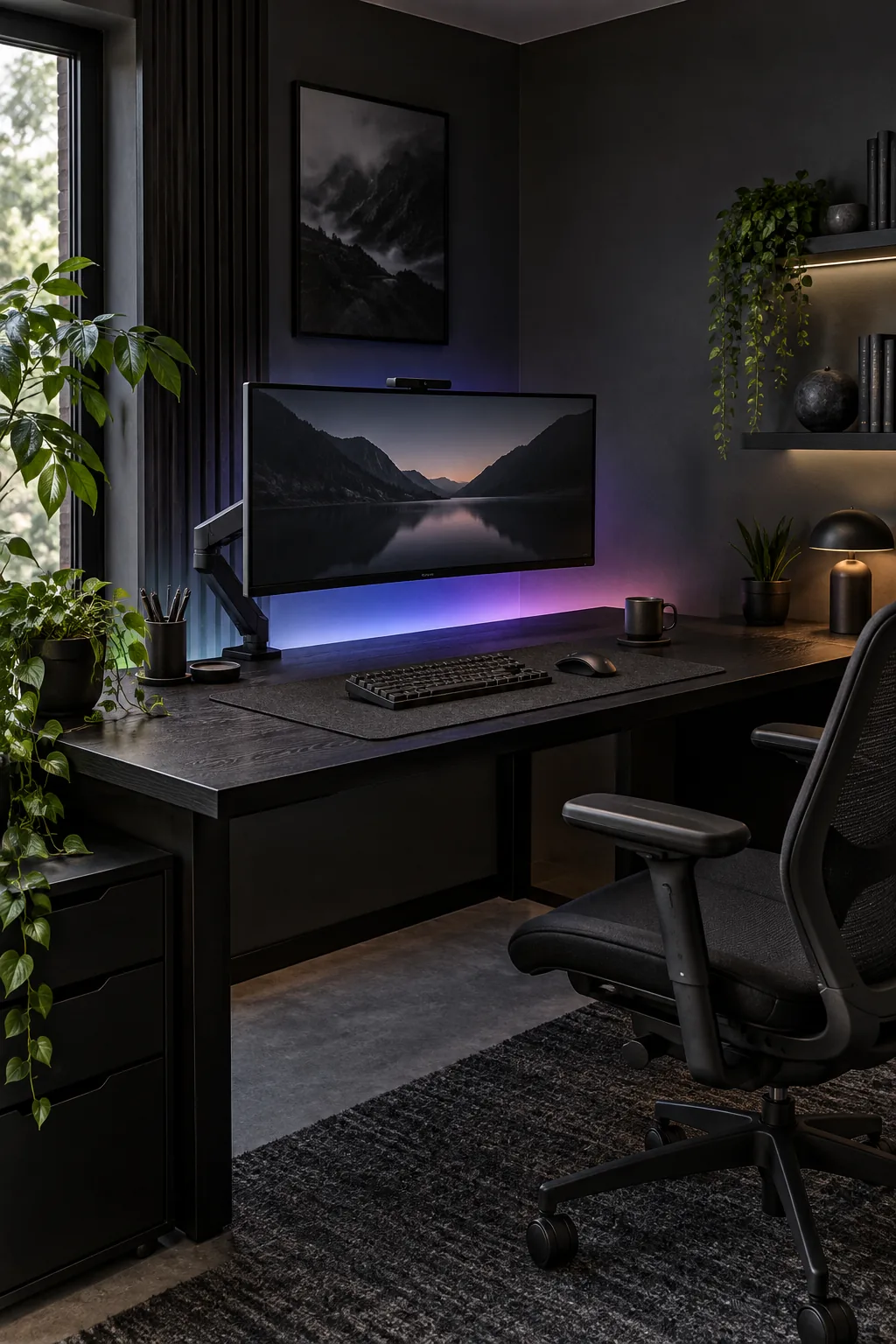
Monochromatic Black Stained Ash: This monochromatic black-on-black setup uses a dark stained ash desk and a black wool pad to make the glowing monitor screen the sole focal point.